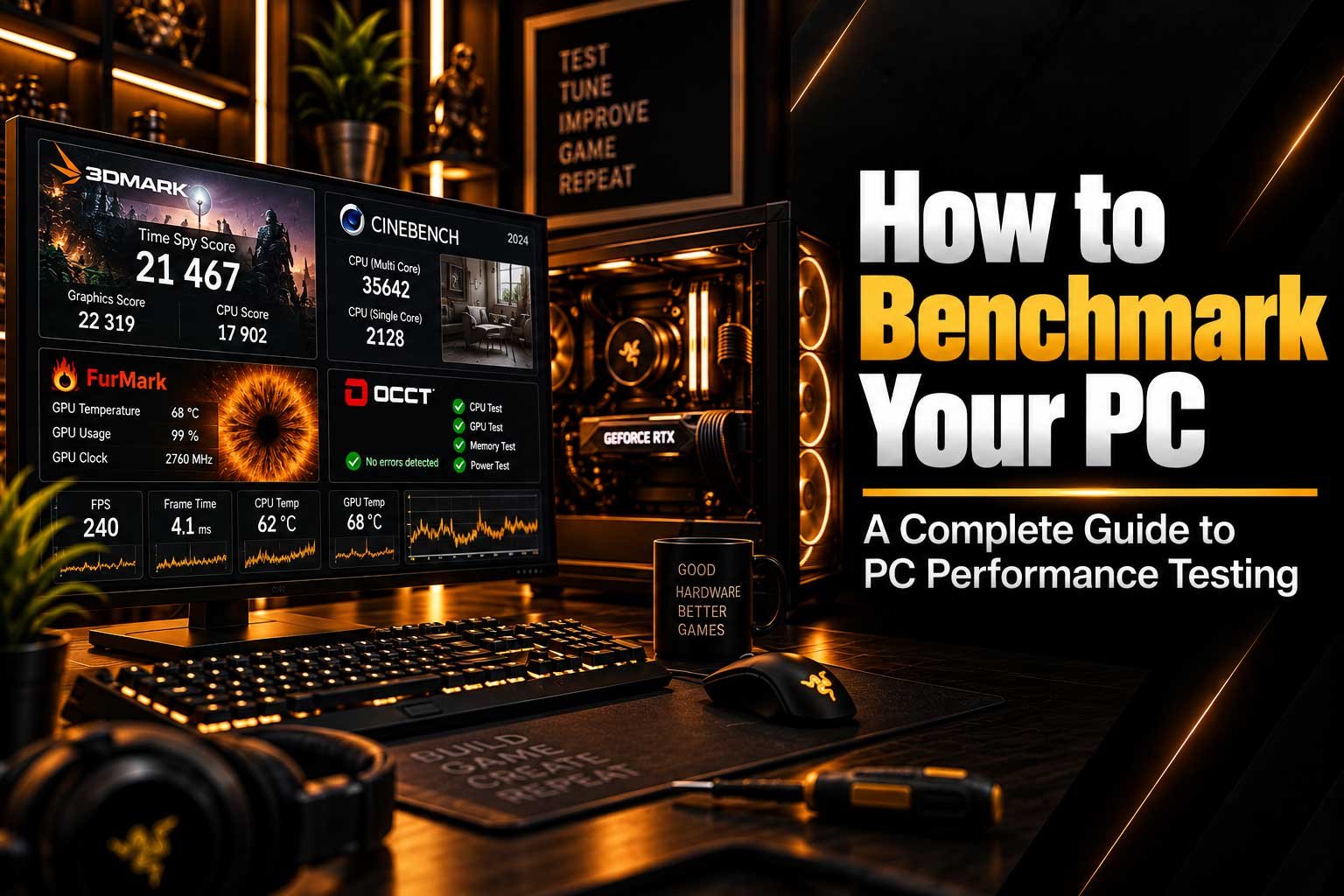
Learn how to benchmark your gaming PC and discover how to test your CPU, GPU, RAM and overall system performance using reliable benchmarking and stress-testing tools.
- What a PC benchmark is and what it measures
- How to benchmark a gaming PC correctly
- How to test GPU performance and stability
- How to test CPU performance and temperatures
- How to use FurMark and OCCT for PC testing
- How to check gaming PC temperatures and stability
- How to tell if your gaming PC is performing correctly
How to Benchmark Your Gaming PC
Benchmarking a gaming PC is one of the easiest ways to understand how your hardware is performing. A benchmark can measure the performance of individual components such as the CPU and GPU, while stress tests can help determine whether your system remains stable under a sustained workload. This can be especially useful after building a new PC, upgrading a component, changing BIOS settings or troubleshooting unexpected performance problems. Instead of relying only on how fast Windows feels, benchmarking gives you measurable results that can be compared over time. However, a benchmark score should not be treated as the only measure of a gaming PC's performance. Real games, temperatures, frame times and system stability all provide additional information about how your PC performs in everyday use.
What Is a PC Benchmark?
A PC benchmark is a test designed to measure the performance of a computer or one of its components. Depending on the software being used, a benchmark may focus on graphics performance, processor performance, storage speed or overall system performance. The result is usually presented as a score, average frame rate, completion time or another measurable value. Benchmarks are useful because they allow you to compare your system against previous results or similar hardware. For example, if you upgrade your graphics card, running the same benchmark before and after the upgrade can show whether performance has changed. Benchmarking can therefore be useful for checking upgrades, identifying potential performance issues and establishing a baseline for a new gaming PC.
Why Should You Benchmark Your Gaming PC?
There are several reasons why you might want to test your gaming PC performance. A new PC can be benchmarked to establish a baseline, while an older system can be tested to determine whether performance has changed over time. Benchmarking can also help when troubleshooting unusual temperatures, crashes, unexpected FPS drops or inconsistent performance. If you have recently installed a new GPU, CPU, RAM kit or cooling solution, testing the system can provide useful information about whether everything is operating as expected.
- Check the performance of a new gaming PC.
- Compare performance before and after a hardware upgrade.
- Test GPU and CPU stability.
- Identify unusual temperatures or performance problems.
- Create a performance baseline for future comparisons.
- Check whether your hardware is performing consistently.
- Find potential issues before they become more serious.
How to Benchmark a Gaming PC
The best approach is to test your system in a controlled and repeatable way. Before starting, close unnecessary applications and make sure the PC is operating normally. Record your CPU and GPU temperatures at idle, then run the selected benchmark and record the results. If you are comparing two configurations, use the same benchmark, resolution and settings each time. Changing several variables at once can make the results difficult to interpret. It is also useful to repeat important tests because a single run may not represent typical performance. During testing, monitor CPU usage, GPU usage, temperatures, clock speeds and FPS where applicable. This provides much more useful information than looking at a benchmark score alone.
How to Test Your GPU
The graphics card is one of the most important components in a gaming PC, making GPU benchmarking particularly useful. Graphics benchmarks can place a heavy workload on the GPU and provide a measurable performance result. Stress testing can go further by maintaining a demanding workload for an extended period, which can reveal temperature or stability problems that might not appear during a short benchmark.
When testing a GPU, pay attention to more than the final score. Monitor the GPU temperature, clock speed, utilisation and whether the system experiences crashes, visual corruption or unexpected performance drops. If the GPU is consistently running at high utilisation during a graphics benchmark, that is generally expected. If utilisation is unexpectedly low, the limitation could be elsewhere in the system. Our guide on why your GPU isn't reaching 100% usage explains some of the common reasons for this behaviour.
How to Test Your CPU
CPU benchmarking measures how effectively your processor handles a specific workload. CPU tests can be useful for comparing processor performance, checking whether a new CPU is operating as expected and identifying thermal limitations. During a CPU test, monitor temperatures and clock speeds as well as the benchmark result. Modern processors can dynamically adjust their clock speeds depending on workload, temperature and power limits, so the result can be affected by the cooling system and other settings.
CPU testing can also help when investigating gaming performance. Some games rely heavily on processor performance, particularly when there are many objects, NPCs, physics calculations or other background tasks being processed. If your graphics card is capable of producing more frames but the CPU cannot keep up, the processor can become a performance limitation. You can learn more about this in our guide to CPU bottlenecks and how to identify when your processor may be limiting your GPU.
How to Test RAM
RAM should not be judged only by its capacity or advertised speed. A properly functioning memory kit should also remain stable under load. Memory testing can help identify errors that may otherwise appear as random crashes, application failures or unusual system behaviour. This becomes particularly relevant after installing new RAM or changing memory settings in the BIOS.
When testing memory, use a dedicated memory-testing application and allow the test to run long enough to provide meaningful results. If errors are reported, investigate the memory configuration, motherboard settings and individual modules rather than assuming that the RAM is automatically defective. Memory profiles such as XMP or EXPO can change operating parameters, so stability should be checked after making significant memory configuration changes.
How to Test PC Stability
PC stability testing is different from simply measuring performance. A benchmark may run for a relatively short period and produce a score, while a stress test is designed to keep the hardware under sustained load. This can reveal problems that only appear after the system has been working hard for several minutes or longer. Stability testing can therefore be useful after building a PC, changing BIOS settings, replacing cooling hardware or troubleshooting crashes.
- Monitor CPU temperature during sustained workloads.
- Monitor GPU temperature during graphics testing.
- Watch for crashes, freezes or unexpected restarts.
- Look for graphical artefacts during GPU testing.
- Check whether clock speeds remain reasonably consistent.
- Record results so you can compare them later.
If your computer repeatedly restarts under gaming or heavy workloads, benchmarking can help reproduce the problem, but it should not be used as the only diagnostic method. Our guide Why Does My PC Restart While Gaming? covers several potential causes of unexpected restarts.
How to Use FurMark for GPU Testing
FurMark is a GPU-focused testing tool commonly used to place a demanding graphical workload on a graphics card. This makes it useful for checking GPU temperatures, stability and behaviour under sustained load. Because stress tests can place significantly more consistent load on a component than many normal gaming situations, temperatures can rise quickly. For this reason, you should monitor the system while testing rather than simply starting a stress test and leaving the computer unattended.
FurMark can be useful when you want to investigate whether a GPU remains stable under heavy load, but its results should be interpreted carefully. A stress test does not represent every real-world game workload. A graphics card can behave differently depending on the game engine, resolution, graphical settings and workload characteristics. For a complete assessment, combine synthetic testing with actual gaming performance and temperature monitoring.
How to Use OCCT for PC Testing
OCCT provides a broader collection of testing options for checking different parts of a PC. Depending on the test selected, it can be used to investigate CPU, GPU, memory and other system behaviours. This makes it useful when you are trying to determine whether a problem is isolated to one component or appears when the system is under a particular type of workload.
When using OCCT or another stress-testing application, the goal should not simply be to achieve the highest possible temperature or longest possible test. The useful information comes from observing whether the system remains stable and whether temperatures and performance remain within reasonable operating behaviour. If a test produces errors, crashes or unusual behaviour, stop and investigate the underlying cause before continuing with additional stress testing.
FurMark vs OCCT
| Feature | FurMark | OCCT |
|---|---|---|
| GPU testing | Strong focus | Available |
| CPU testing | Not its primary purpose | Available |
| Memory testing | Not its primary purpose | Available |
| Stress testing | GPU-focused | Multiple system components |
| Best use | GPU load and stability testing | Broader PC stability testing |
These tools serve somewhat different purposes, so there is no need to treat them as direct replacements for each other. FurMark is particularly useful for GPU-focused testing, while OCCT provides a broader selection of tests for investigating different parts of a system. Using the appropriate test for the component you are investigating can produce more useful information than repeatedly running the same benchmark. For a complete PC assessment, synthetic tests should also be combined with normal gaming and everyday workloads.
What Temperatures Are Normal During PC Testing?
Temperature is one of the most important measurements to monitor during a gaming PC stress test. Hardware temperatures naturally increase when components are placed under heavy workloads, so a higher temperature during a benchmark is not automatically a sign of a problem. What matters is whether the component remains within its intended operating limits and whether performance becomes unstable because of excessive heat.
Cooling hardware, room temperature, case airflow, fan curves and the workload itself can all affect temperatures. Two PCs using similar components can therefore produce different thermal results. If temperatures are unexpectedly high, check the cooler installation, thermal interface, airflow and fan operation. Our article Air Cooling vs Liquid Cooling explains the main differences between the two common approaches to PC cooling.
How Long Should a PC Benchmark Run?
There is no universal testing duration that is appropriate for every benchmark. A short benchmark can be useful for measuring performance, while a longer stress test is more useful for checking sustained stability and temperatures. The correct duration therefore depends on what you are trying to learn about the system. If you are comparing two GPUs, for example, a repeatable benchmark run may be more important than an extremely long stress test.
For stability testing, the important factor is whether the system continues to behave correctly throughout the workload. If the PC crashes quickly, there is little reason to continue the test simply to reach a predetermined duration. Similarly, a system that remains stable under one short benchmark may require additional testing before you can confidently rule out longer-term stability issues. Testing should always have a clear purpose rather than being performed simply to generate a large number.
Benchmark Results vs Real Gaming Performance
A benchmark score does not automatically tell you exactly how your PC will perform in every game. Different games place different demands on the CPU, GPU, memory and storage system. One benchmark may heavily favour graphics performance, while another may focus more on processor performance. Real games can also produce very different workloads depending on resolution, graphical settings, game engine and the number of objects being rendered.
This is why real gaming performance should be considered alongside benchmark results. Measure FPS, frame times and system utilisation in the games you actually play. If a benchmark suggests that your GPU is performing normally but a particular game has unexpectedly low FPS, the issue may be related to CPU limitations, game settings, drivers or the game itself. Our guide What Does FPS Mean in Gaming? explains how frame rate and frame time relate to the gaming experience.
How to Benchmark a New Gaming PC
Benchmarking a new gaming PC is useful because it creates a performance baseline from the beginning. Before testing, make sure the operating system, drivers and required software are properly installed. Record the initial temperatures and then run appropriate CPU, GPU and memory tests. Save the results so you have a reference point if you later change hardware or notice a change in performance.
A new PC should also be tested under the types of workloads it is intended to handle. If the computer is designed primarily for gaming, run several games at the resolutions and settings you expect to use. This provides information that synthetic benchmarks cannot provide on their own. Looking at FPS, frame-time consistency, temperatures and system utilisation together gives a more complete picture of the computer's performance.
Common PC Benchmarking Mistakes
- Comparing results from completely different benchmark settings.
- Changing multiple hardware or software variables at the same time.
- Ignoring CPU and GPU temperatures during testing.
- Judging a PC entirely by one benchmark score.
- Assuming higher temperatures automatically mean hardware failure.
- Running stress tests without monitoring the system.
- Comparing results from different drivers or software versions without considering the difference.
- Ignoring real-world gaming performance.
One of the most common mistakes is focusing on a single number. A benchmark result is useful when it is placed into context. If a score changes, investigate what else changed between the two tests. Driver versions, BIOS settings, temperatures, background applications and benchmark settings can all influence the result. Keeping consistent testing conditions makes your results much more useful over time.
What Should You Record During a Benchmark?
| Metric | Why It Matters |
|---|---|
| Benchmark Score | Provides a measurable performance result for comparison. |
| FPS | Shows graphics performance in applicable gaming or graphical tests. |
| Frame Time | Helps identify inconsistent frame delivery. |
| CPU Temperature | Shows how the processor behaves under workload. |
| GPU Temperature | Shows how the graphics card behaves under workload. |
| CPU Usage | Helps identify processor-related limitations. |
| GPU Usage | Helps determine how heavily the graphics card is being utilised. |
When Should You Benchmark Your PC?
You do not need to benchmark your computer every day. Testing is most useful when something has changed or when you need to answer a specific question about system performance. A new gaming PC can be tested after installation, while an existing system can be benchmarked after a major hardware upgrade, BIOS change or cooling upgrade. Benchmarking can also be useful when troubleshooting unexplained performance changes.
- After building a new gaming PC.
- After installing a new GPU or CPU.
- After changing RAM or memory settings.
- After changing the CPU cooler or case airflow.
- When gaming performance suddenly changes.
- When investigating crashes or instability.
- Before and after major hardware upgrades.
Choosing a Gaming PC With Performance in Mind
Benchmarking can help you understand your existing hardware, but it can also help you make better decisions when choosing a gaming PC. Instead of looking only at one component or one advertised performance figure, consider how the CPU, GPU, memory, cooling and power supply work together. The target resolution and games you intend to play should also influence the configuration you choose. A balanced system can provide more consistent results across different workloads than one built around a single high-performance component.
You can browse our current CompHub Gaming Plus, CompHub Gaming Elite and CompHub Gaming Pro configurations to see the gaming PCs currently available. Configurations can change over time, so always check the current product page for the latest hardware and availability.
Final Thoughts
Benchmarking your gaming PC is a useful way to measure performance, check stability and establish a baseline for future comparisons. The most useful testing approach combines component benchmarks, stress tests, temperature monitoring and real-world gaming rather than relying on a single score. Tools such as FurMark and OCCT can help test different aspects of a system, while actual games provide the clearest indication of how the PC performs in everyday use.
Whether you have just built a new computer, upgraded your GPU or are investigating an unexpected performance problem, a structured testing process can make the diagnosis much easier. Record your results, keep testing conditions consistent and pay attention to more than just the final benchmark number. FPS, frame times, temperatures, utilisation and stability together provide a much clearer picture of how well a gaming PC is actually performing.